This time, we'll deploy the website created in Astro to Cloudflare Pages. This enables hosting your website using a CDN, and since it's small-scale, you can use it for free.
Deploy website to Cloudflare Pages
2025-12-17
Prerequisites
The website being deployed this time has the following structure:
- Astro
- Sanity CMS
It's a simple setup that basically deploys a static site. I'll deploy the haramizu.jp site that was previously hosted on Netlify.
Deploy your site to Cloudflare
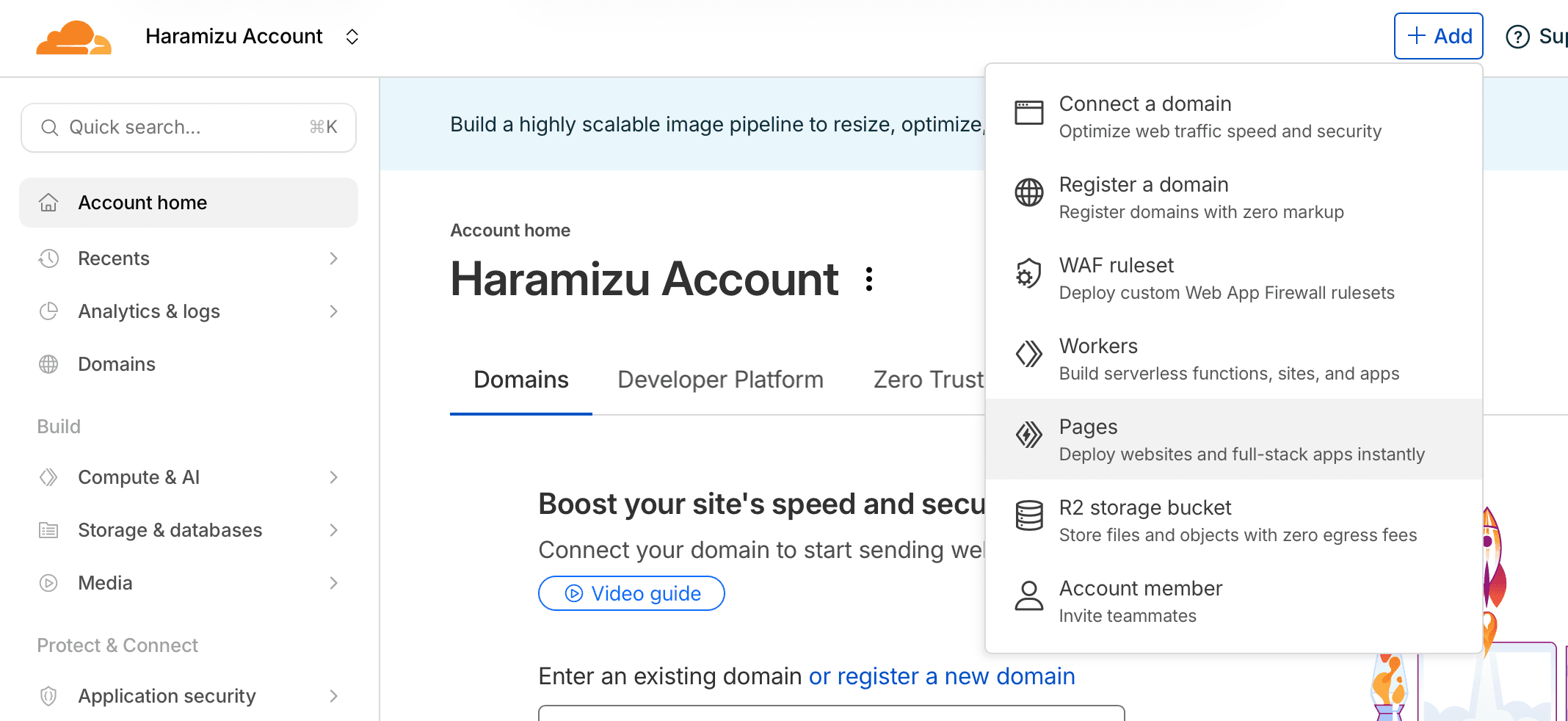
First, deploy the site managed on GitHub to Cloudflare. Log in to Cloudflare, click the + Add button in the top right corner, and select Pages.
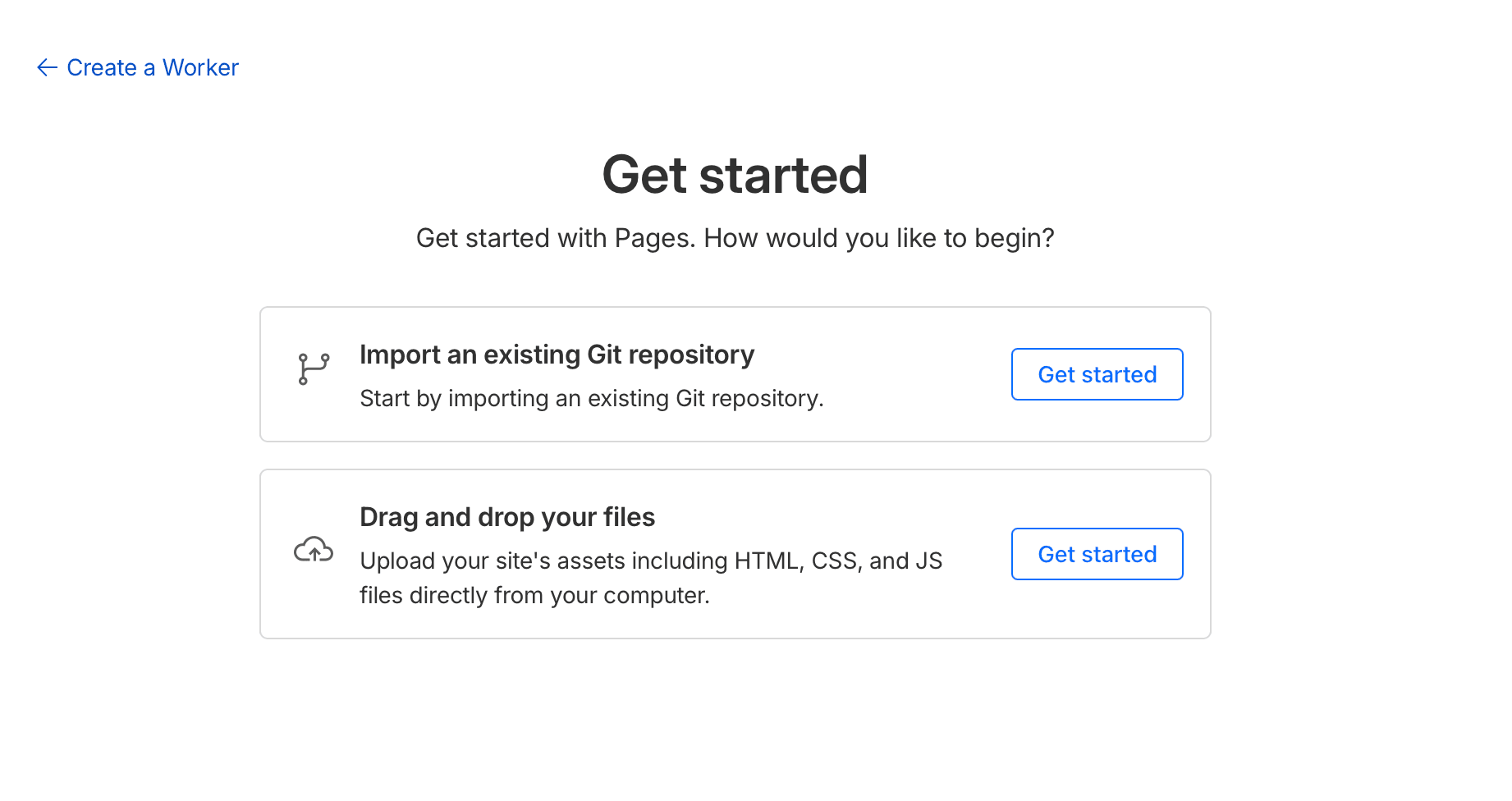
Click Import an existing Git repository.
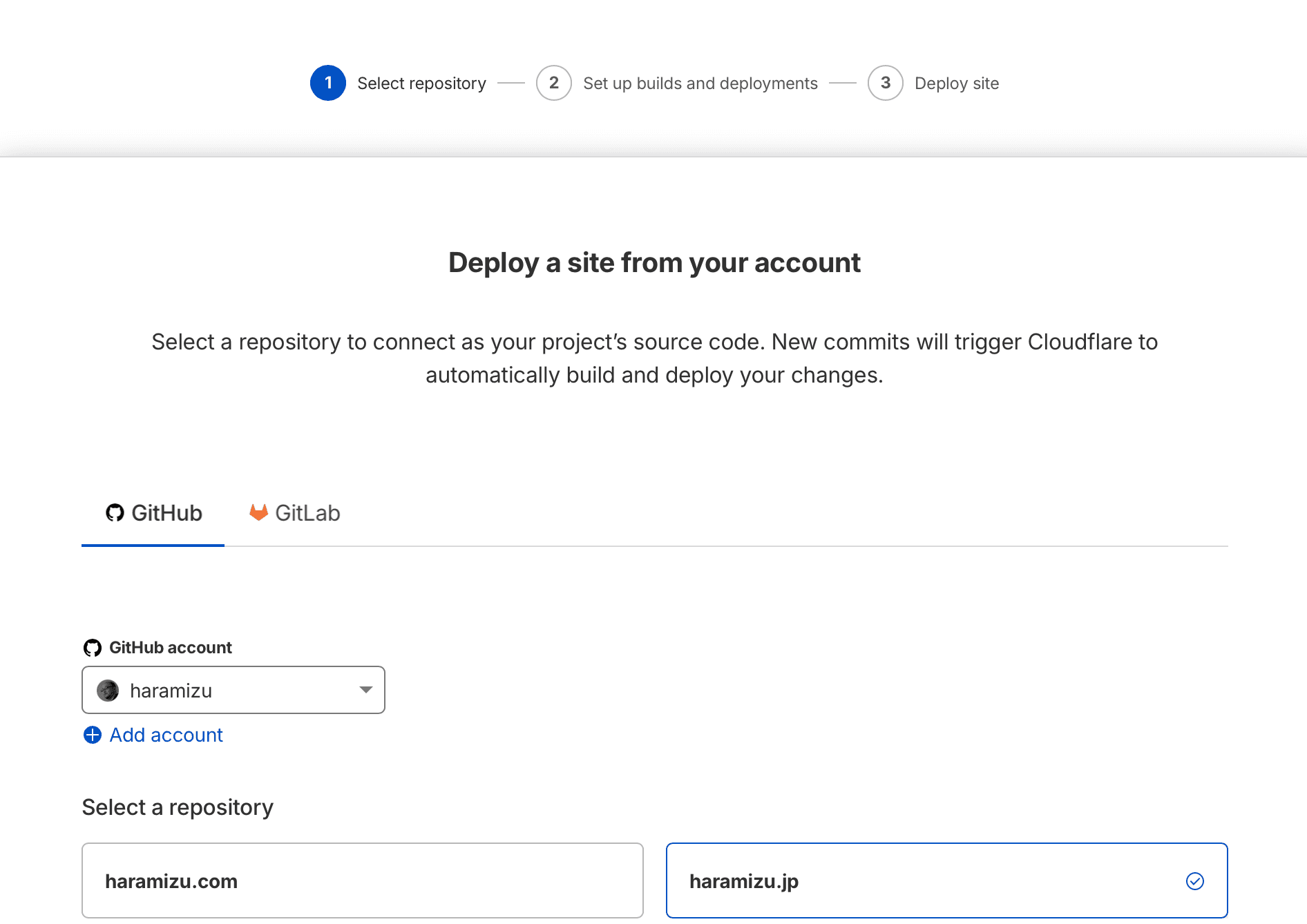
Select the target GitHub repository.
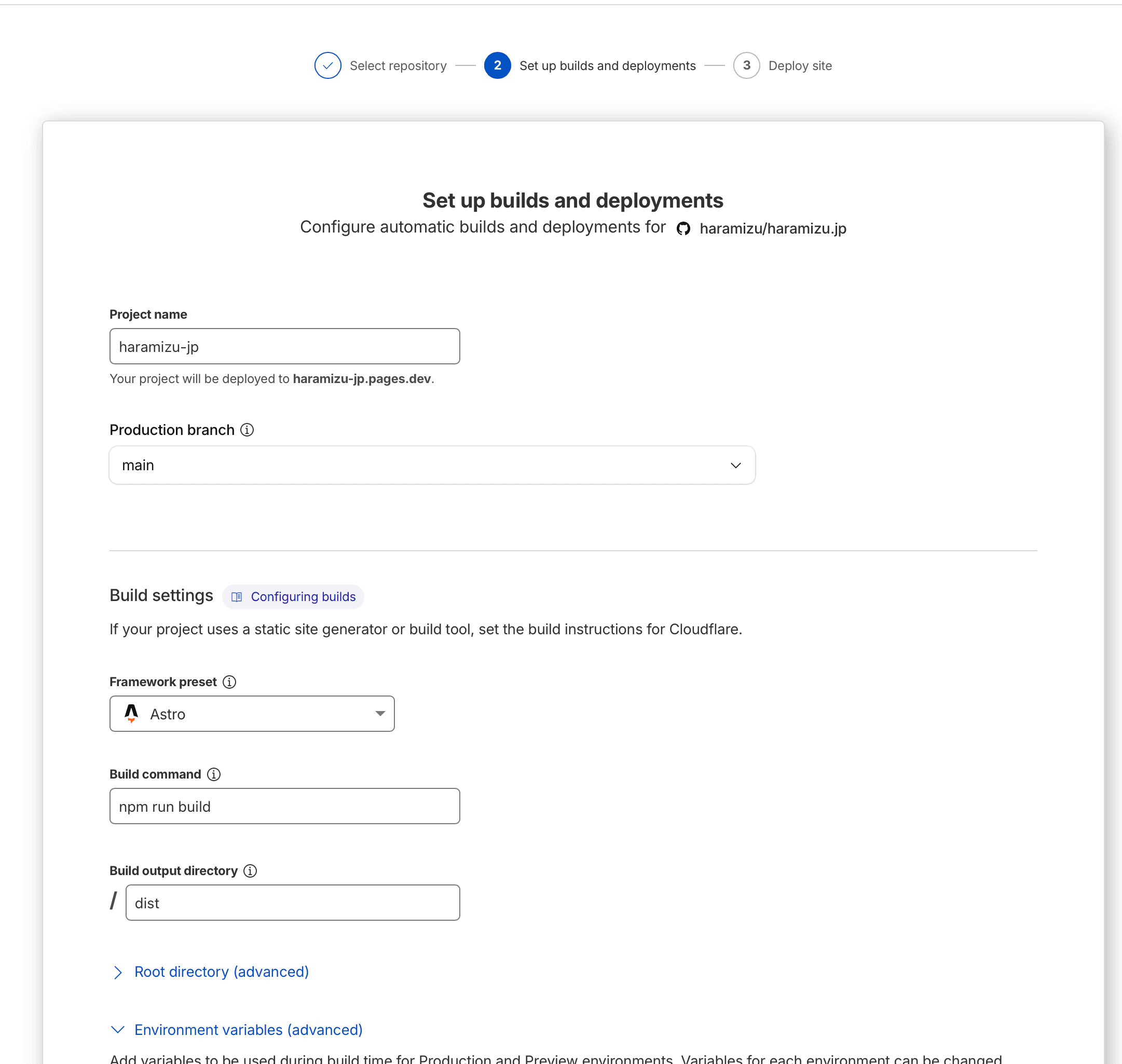
On the next screen, select Astro as the Framework preset and set the environment variables.
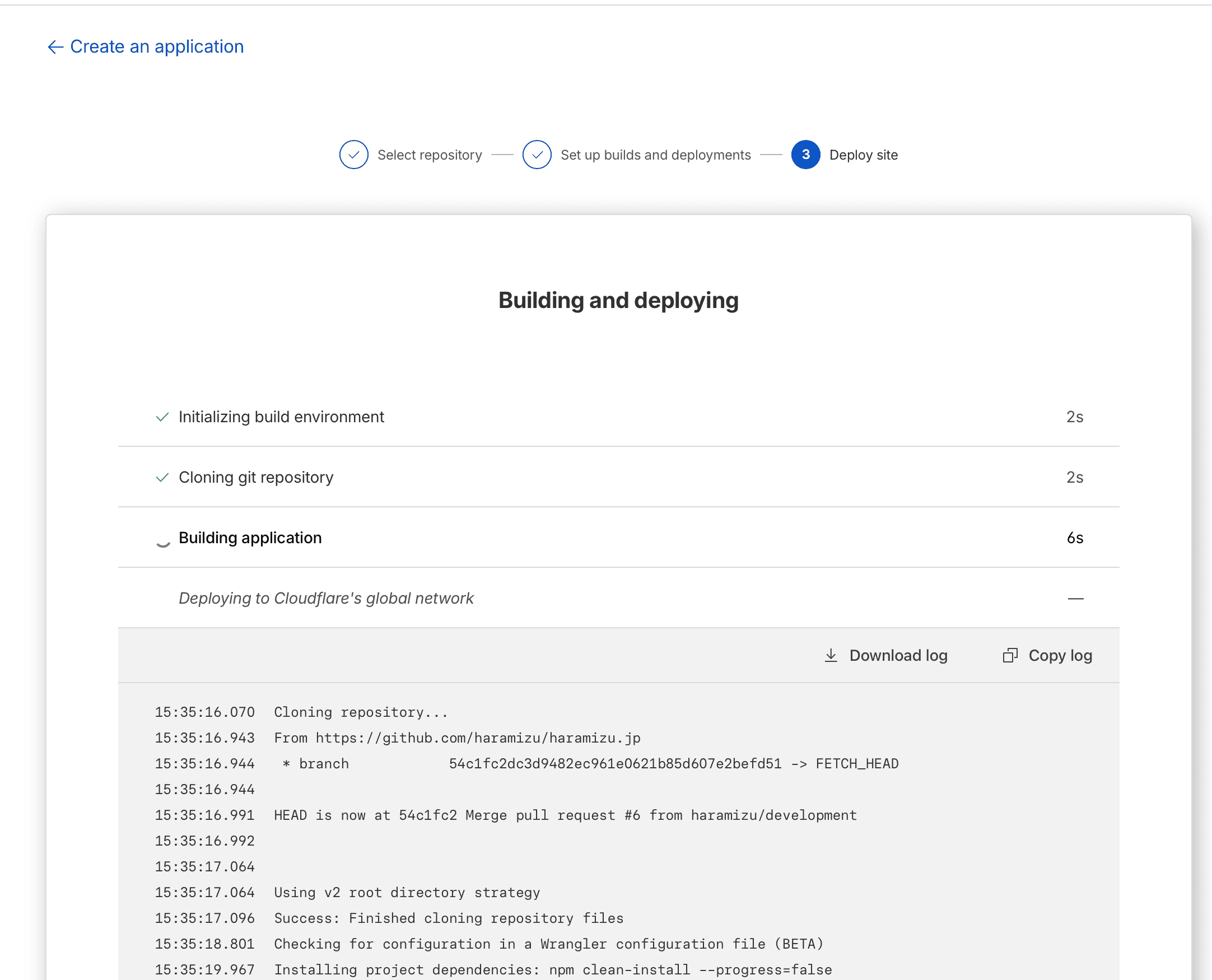
Deployment will begin. Please watch the build for a moment.
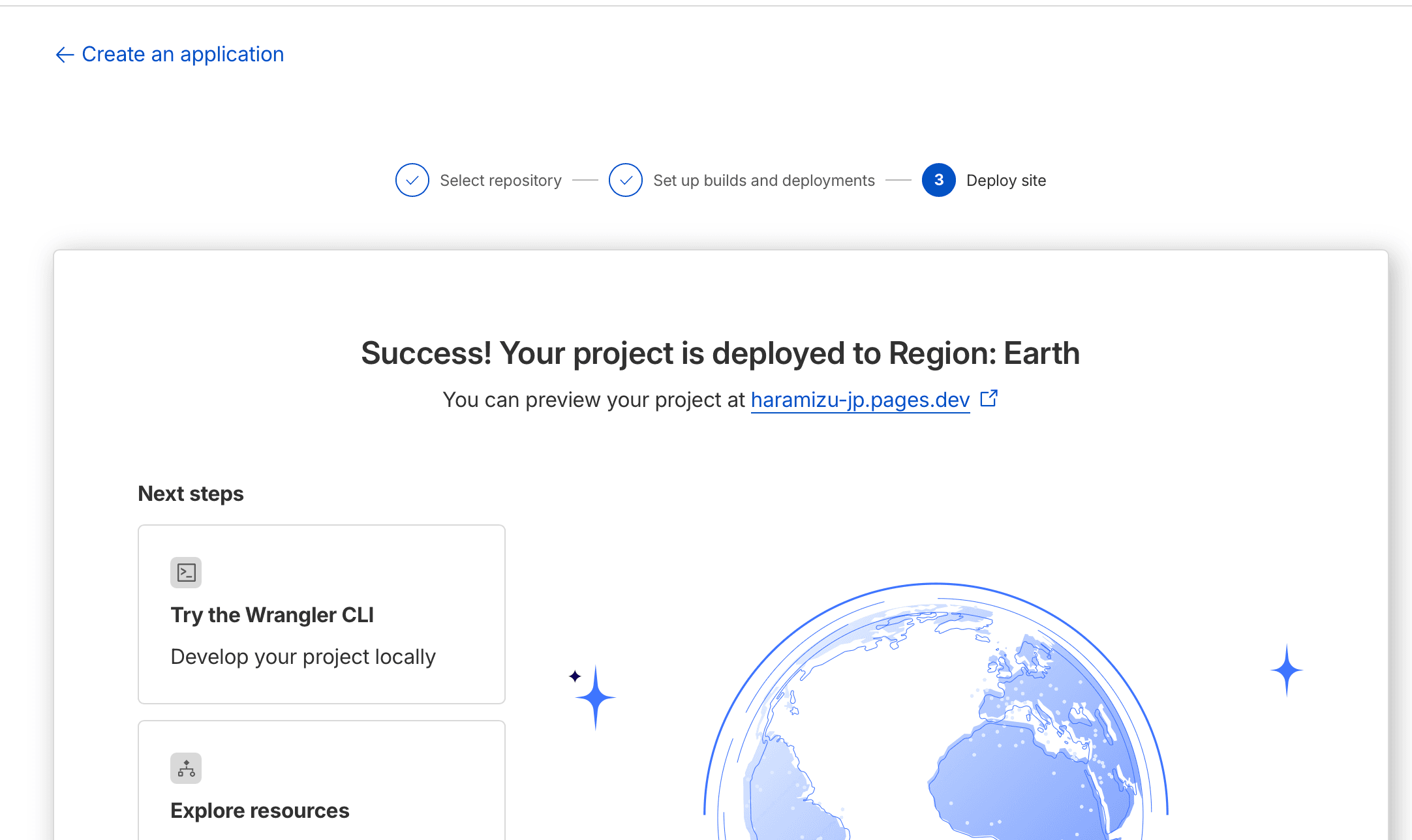
Once complete, the following screen will appear, allowing you to view the site.
When you access the site, you can confirm that the site has been successfully deployed.

Domain Settings
When hosting for free with a custom domain on Cloudflare Pages, you must switch your DNS servers to Cloudflare.
Open the project you created, then open the Custom Domains menu.
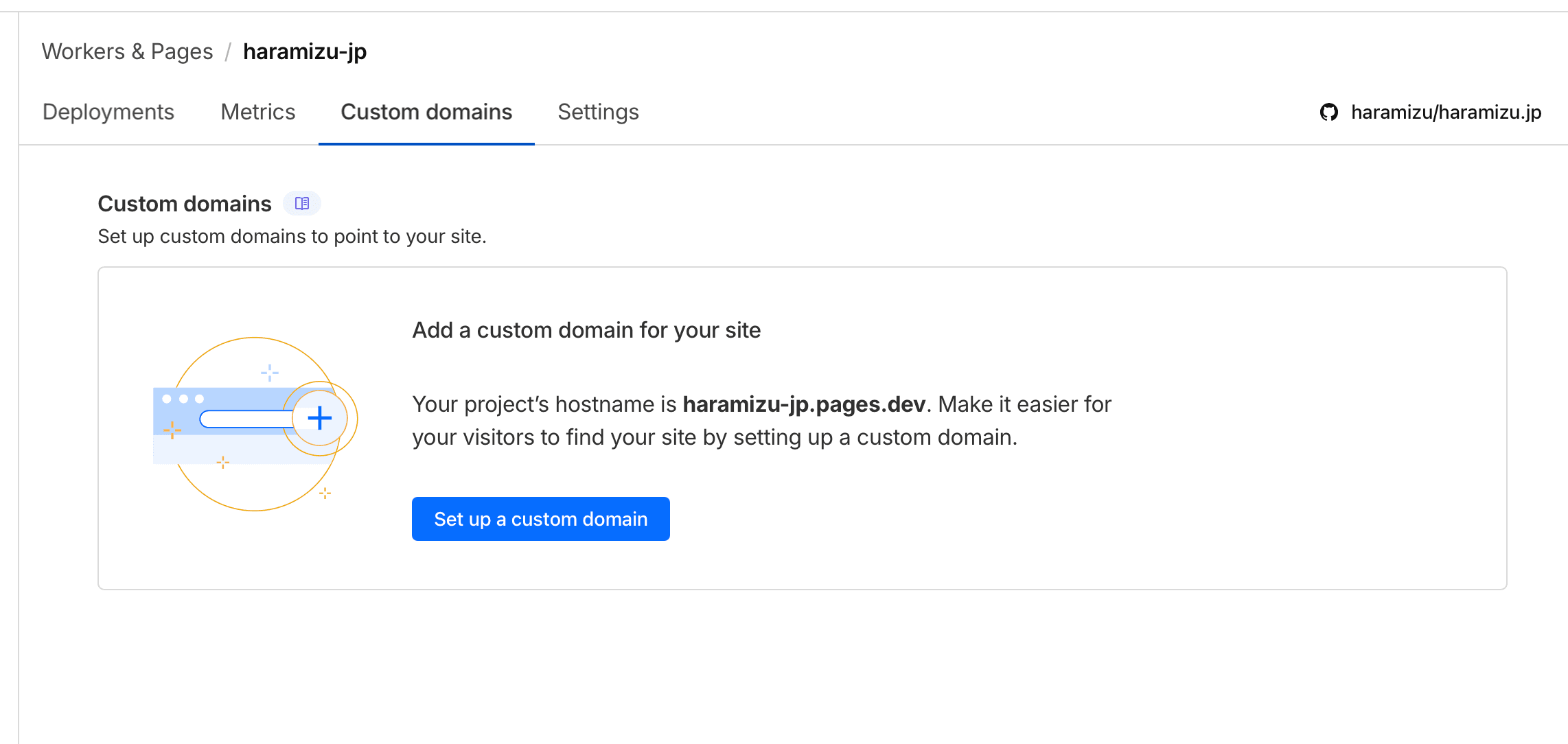
Specify the domain you wish to use.
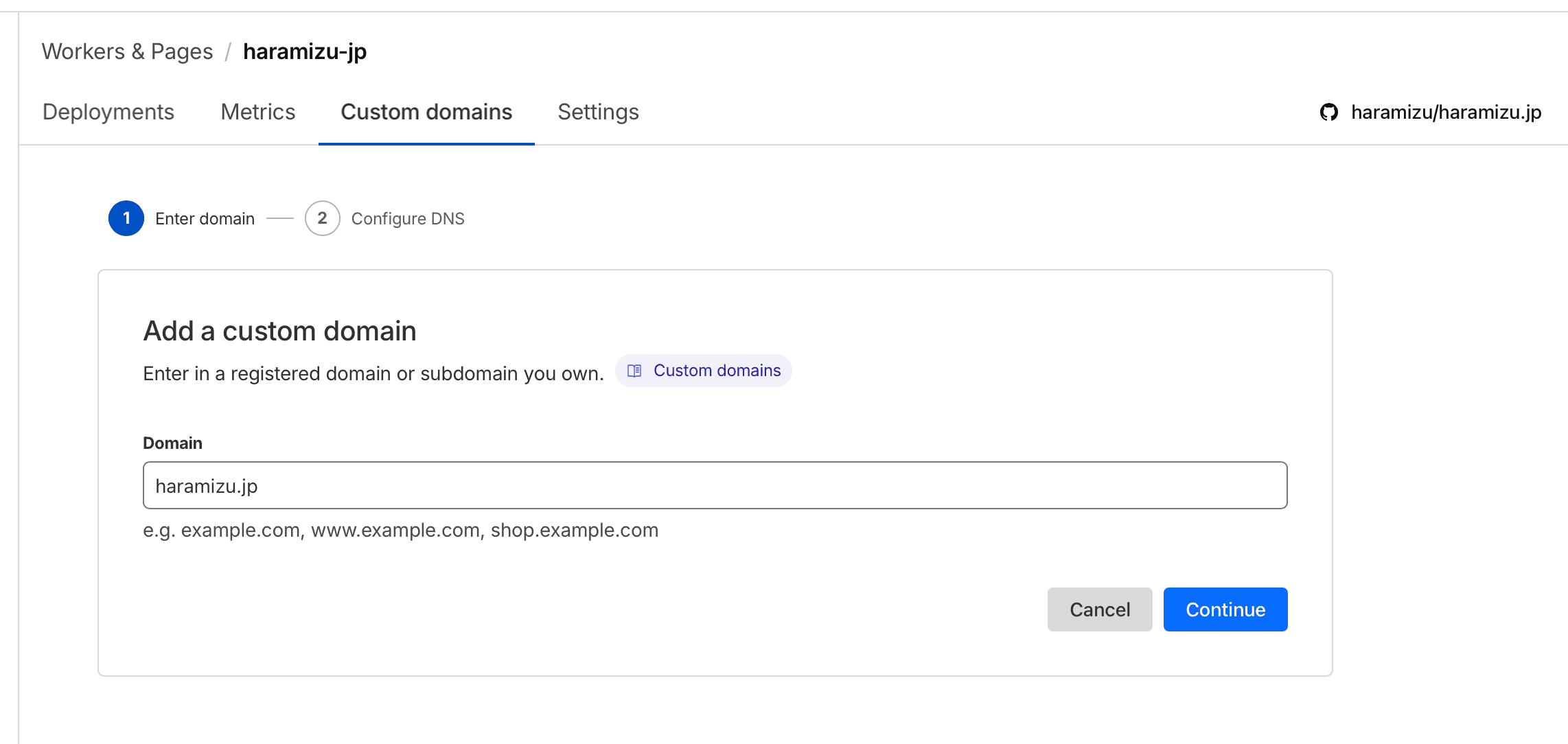
The next screen will display the screen to begin the DNS management transfer procedure.
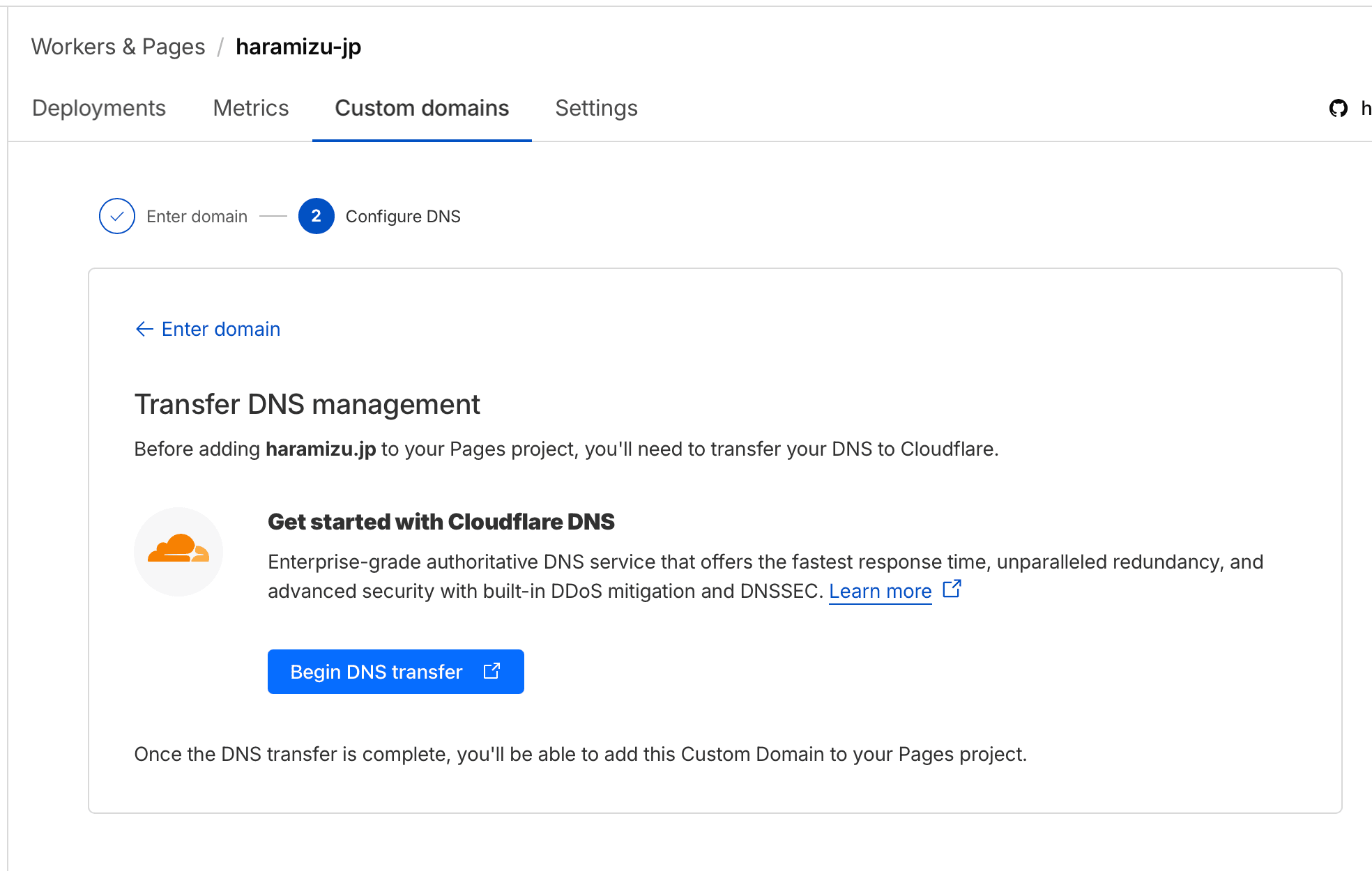
This time, select Quick scan for DNS records. Settings related to AI crawler countermeasures will also be displayed. Since there isn't much significant content, it's acceptable to allow AI access, so I configured it as follows.
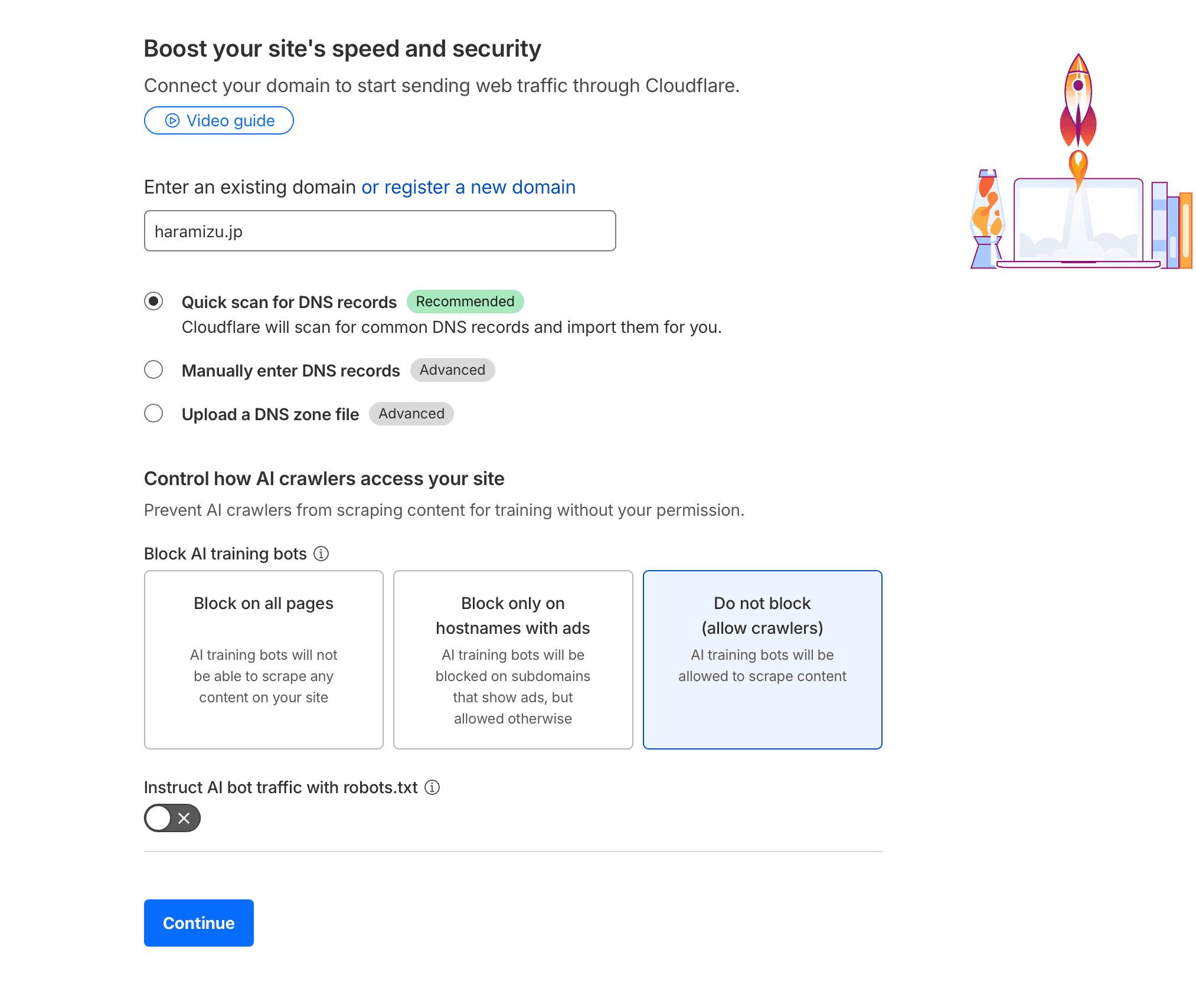
Next, information about the plans will appear. This time, select Free.
Records are pulled from the existing DNS and a list of records is created. Just to be sure, let's verify that all records are included.
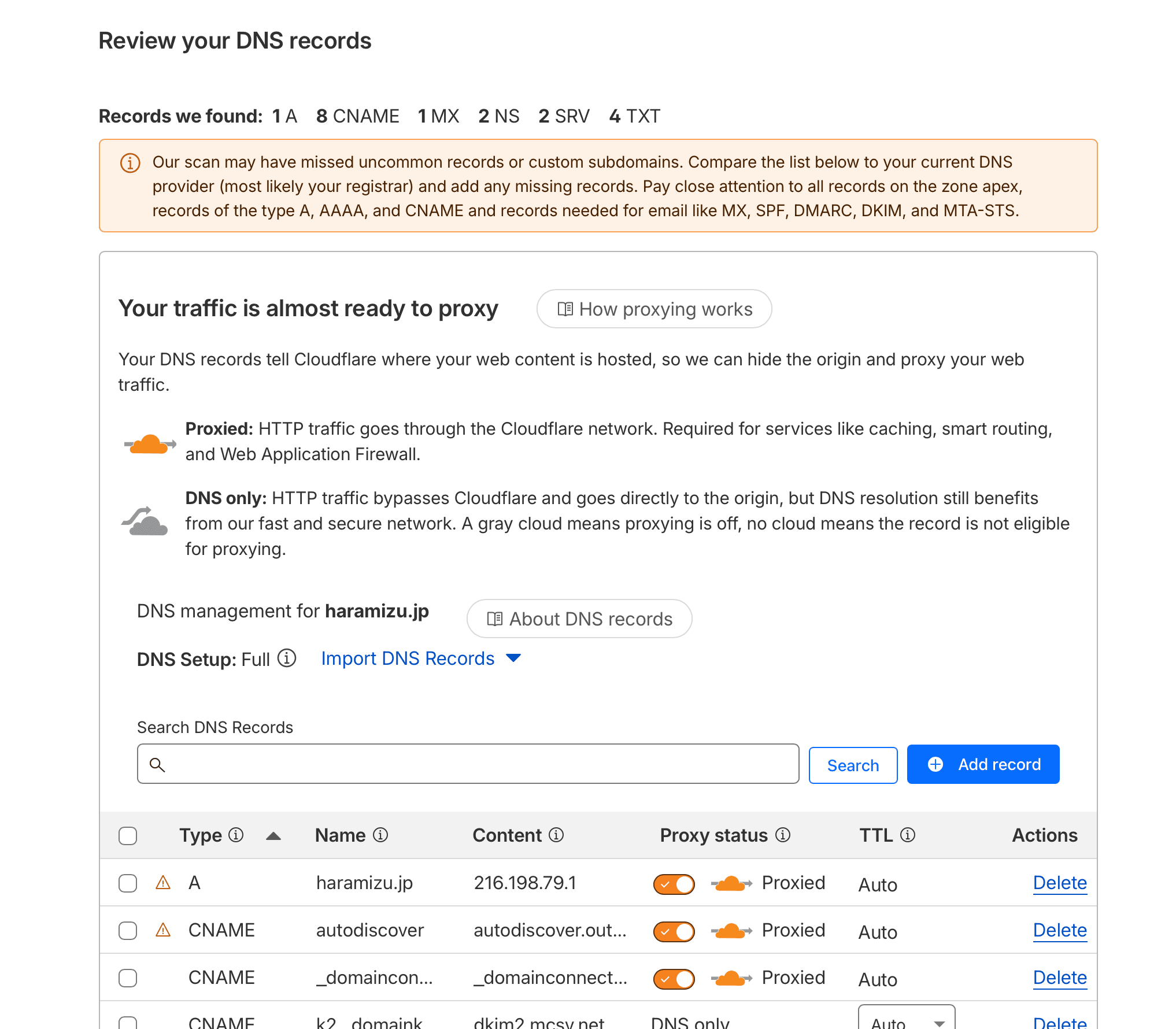
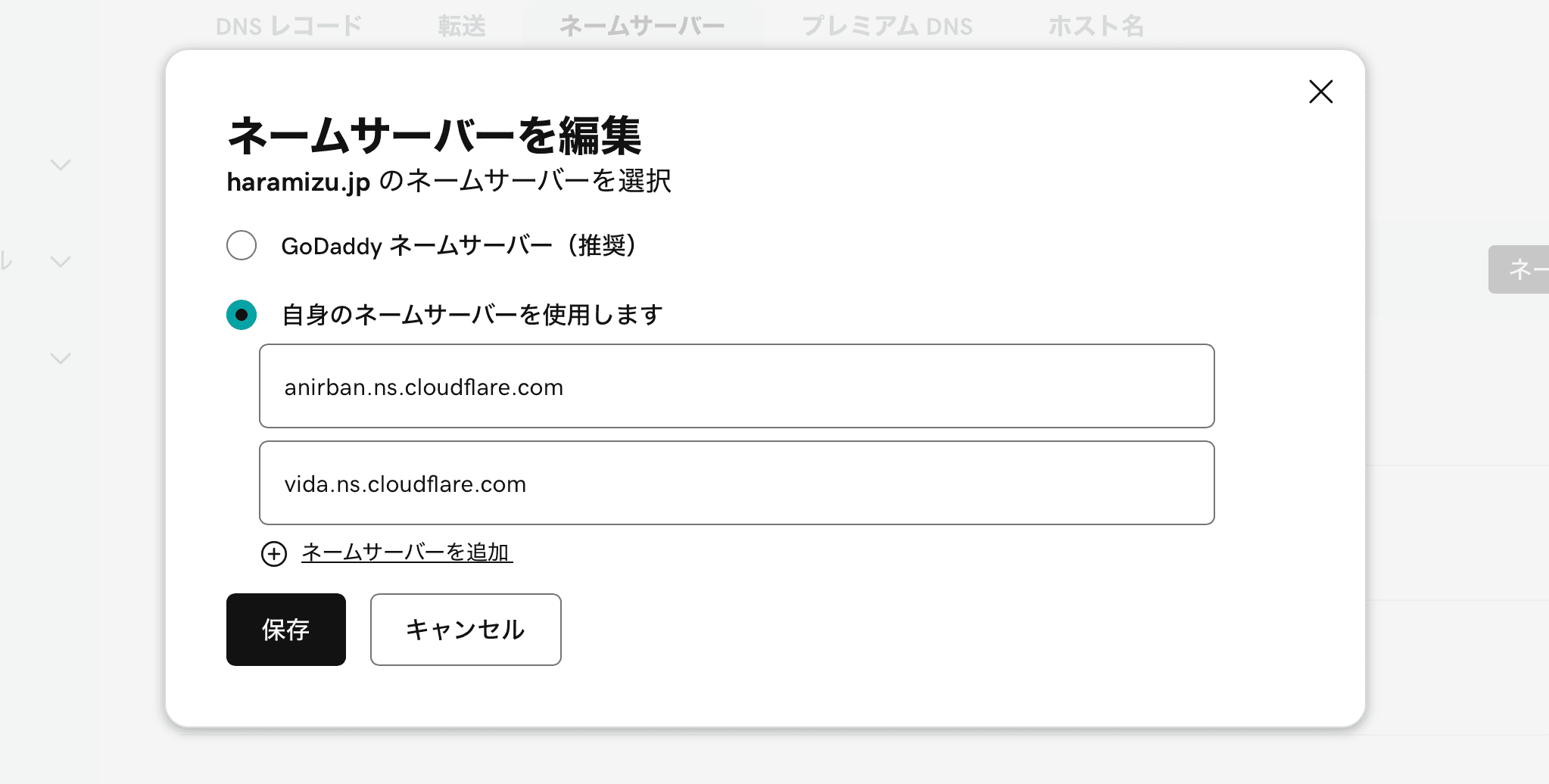
Once the records are in the correct format, change the DNS server records. In my case, since I use GoDaddy as my domain registrar, I changed the DNS servers to the specified ones under the DNS server change section.
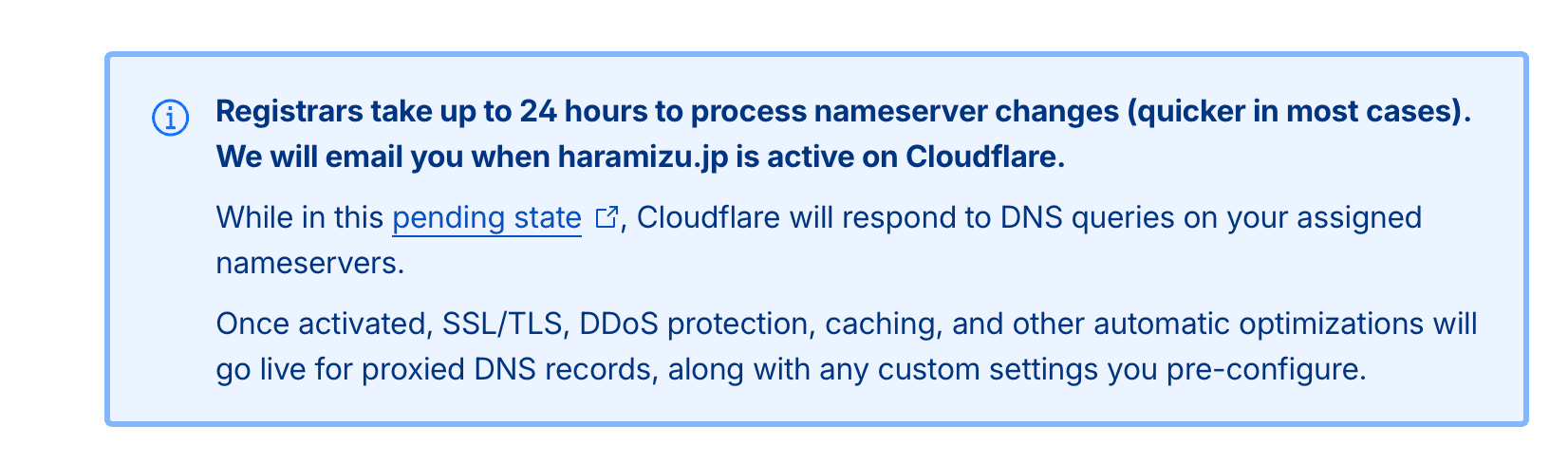
A message will appear stating that it may take up to 24 hours for the changes to take effect.
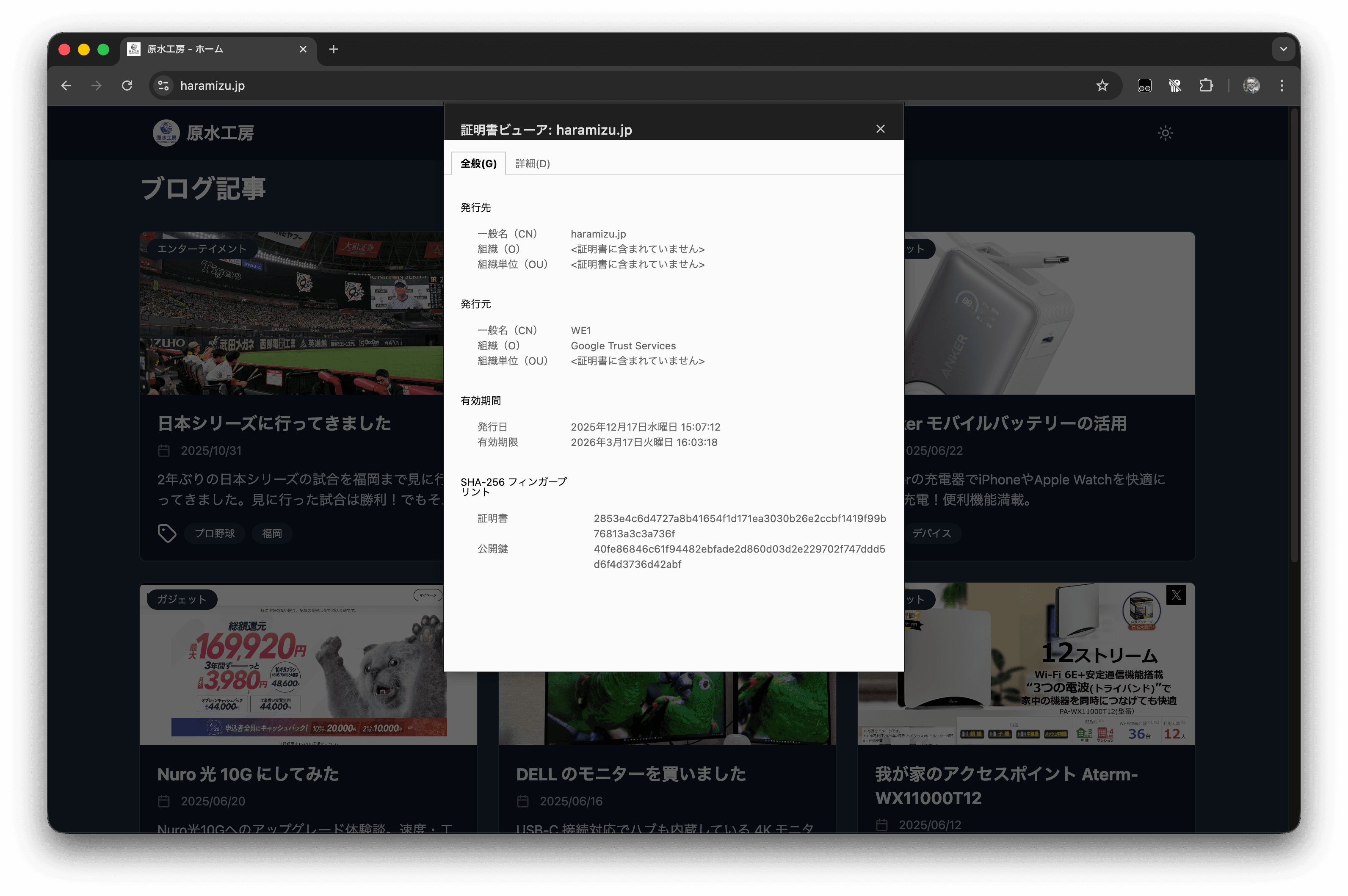
The DNS server itself switched over in about 30 minutes. Certificates were automatically issued, and the site went live with new certificates as shown below.