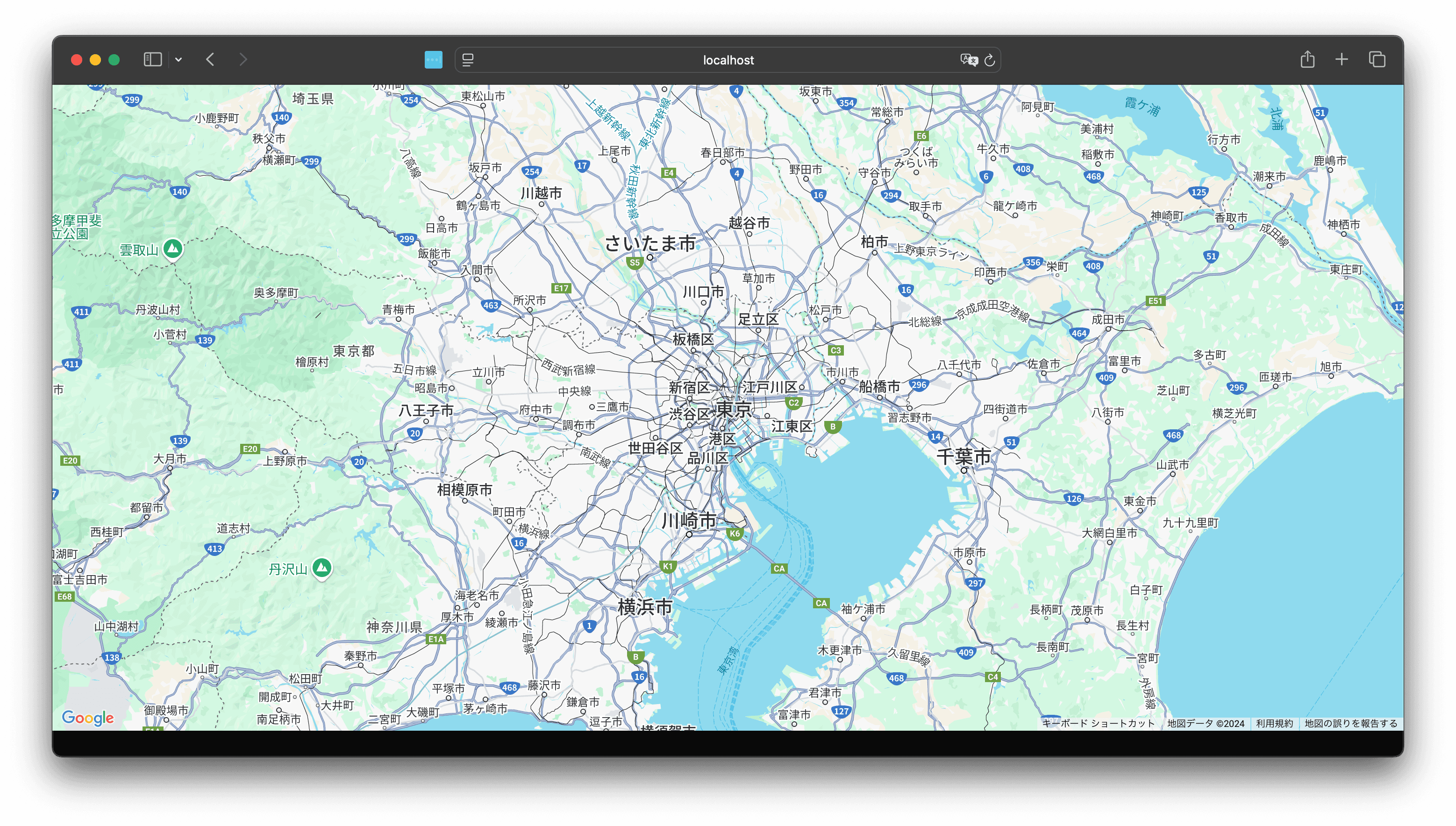
Sanity's Portable Text Editor is equipped to handle standard HTML. Additionally, by creating custom components, you can incorporate content such as standardized information—for example, store details combined with map data—to simplify handling. This guide outlines the steps for adding custom content fields to the Portable Text Editor.
Customizing the portable text editor
2026-01-10
Creating a Map Information Component
First, we define the basic information required to use map data on the page as follows.
- Place name - string
- Website - url
- Latitude - number
- Longitude - number
Add the schema type file that defines this.
schemaTypes/maps.ts
Next, add this item to the Portable Text definition. For reference, the complete code is shown below. To use the icon, we've added the EarthGlobeIcon icon.
schemaTypes/portableText.ts
Finally, we'll add additional definitions for `maps.tx` in `index.ts`. For reference, all code is included, but only the code related to `maps.ts` is being added.
schemaTypes/index.ts
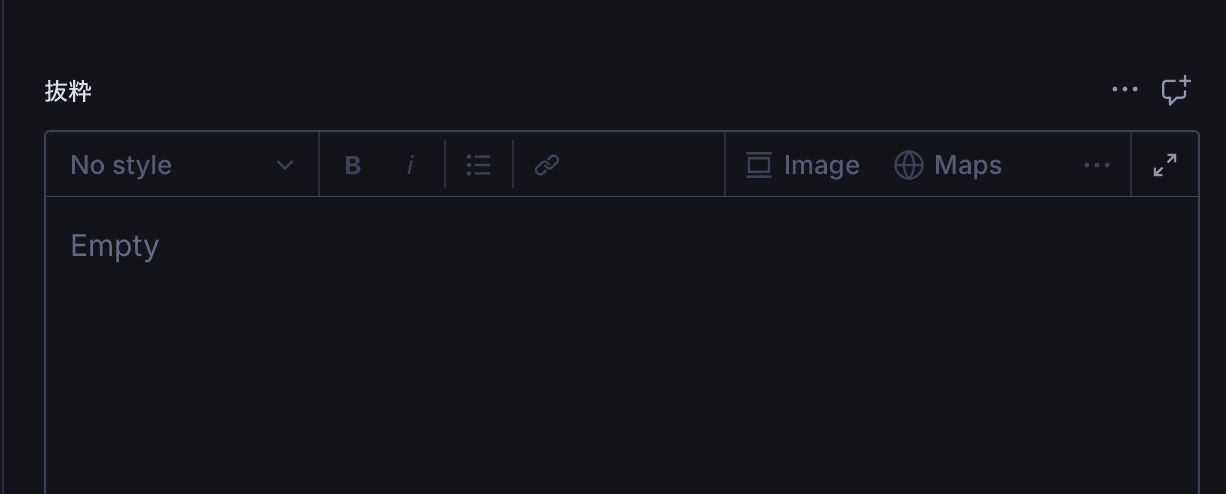
The basic setup is now complete. Let's check the screen in your browser. First, when you look at the target Portable Text field, you'll see that an item named "Maps" has been added.
Clicking the icon will open a dialog like the one below.
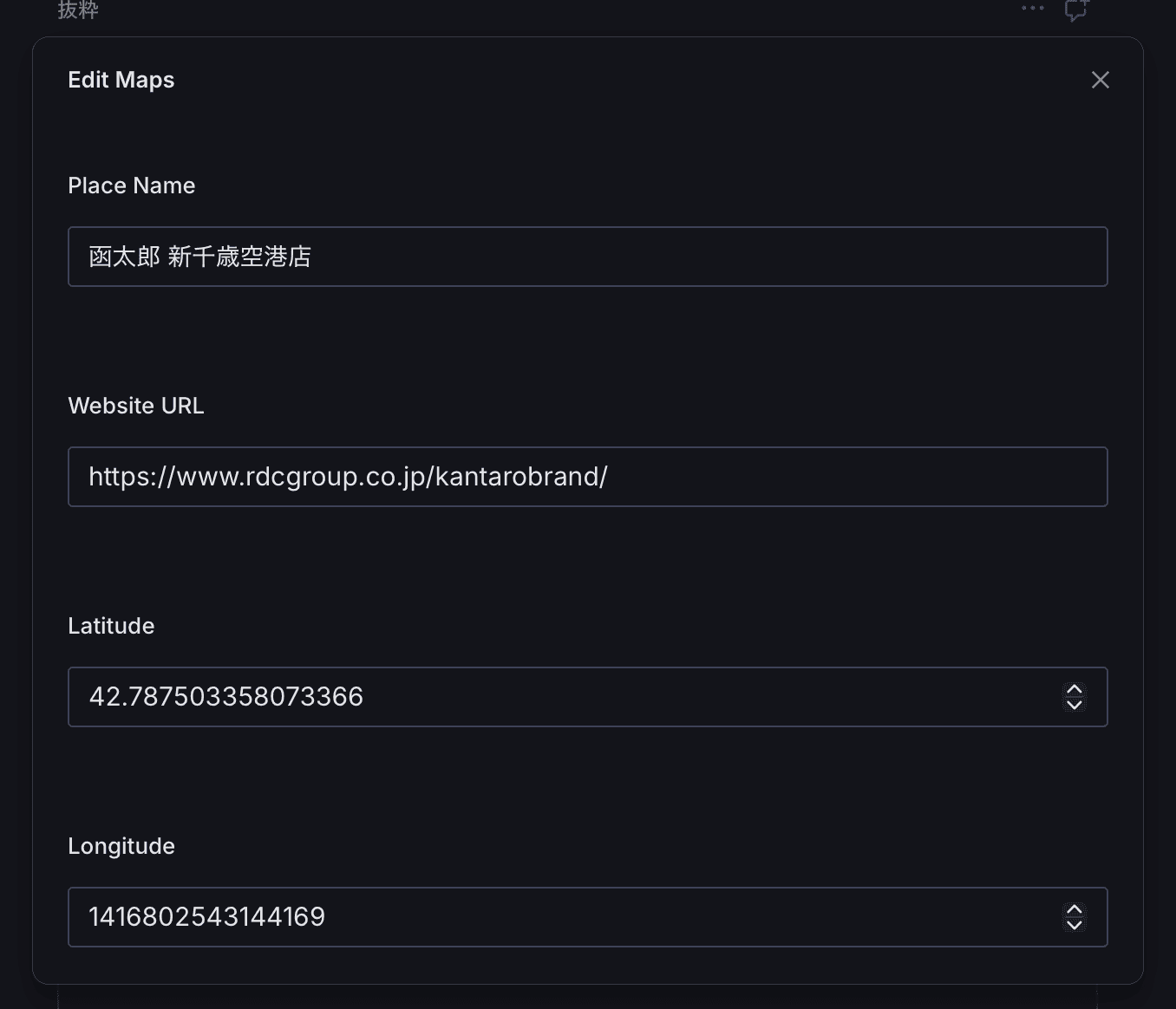
Regarding the tasks up to data entry, this completes the work.
Creating a Preview
We haven't created the preview section for the information you actually entered yet. At this stage, it will be displayed as follows.
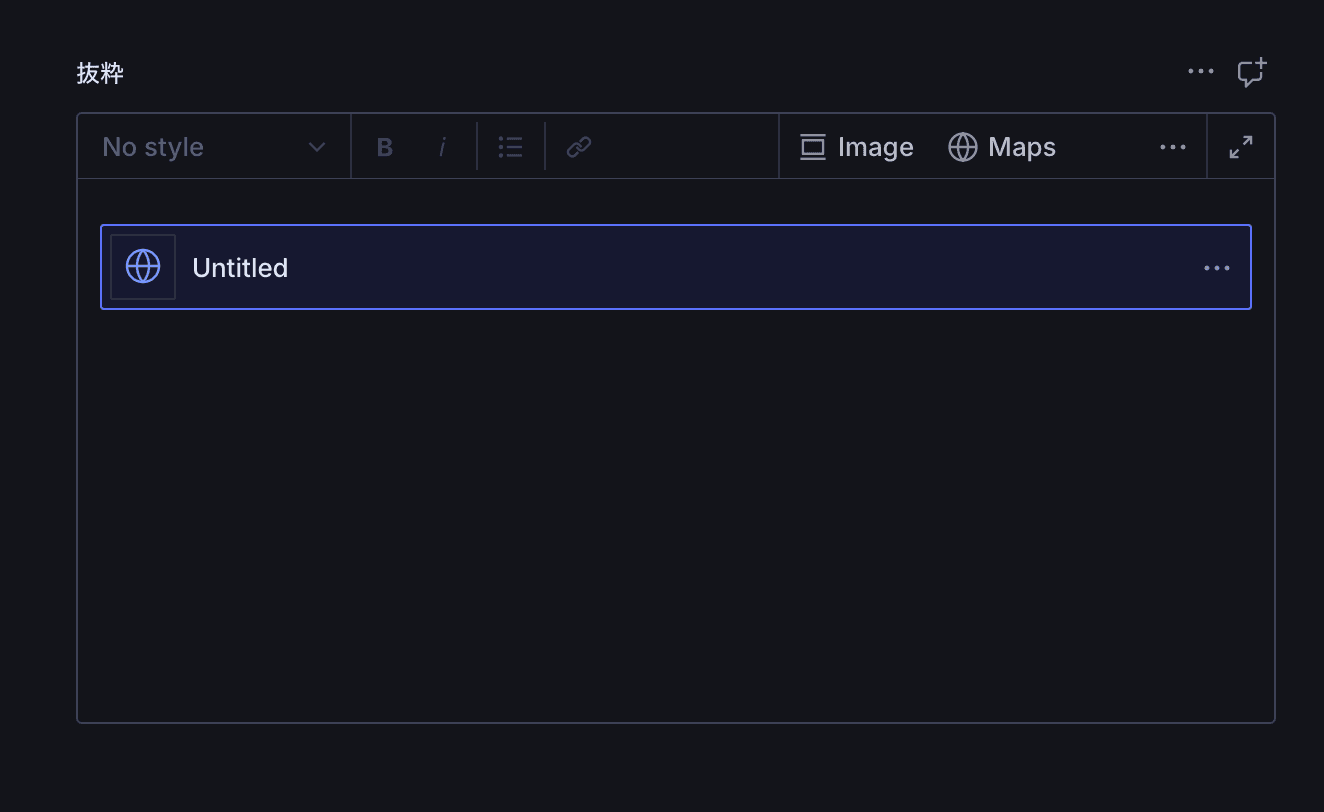
We will create a preview component to display the entered data. This time, we will create the following files.
components/MapsPreview.tsx
To display a preview using this component, update the following section in the maps.ts file. This involves adding an import and modifying code such as the preview.
schemaTypes/maps.ts
schemaTypes/maps.ts
As a result, you can now preview the content as shown below.
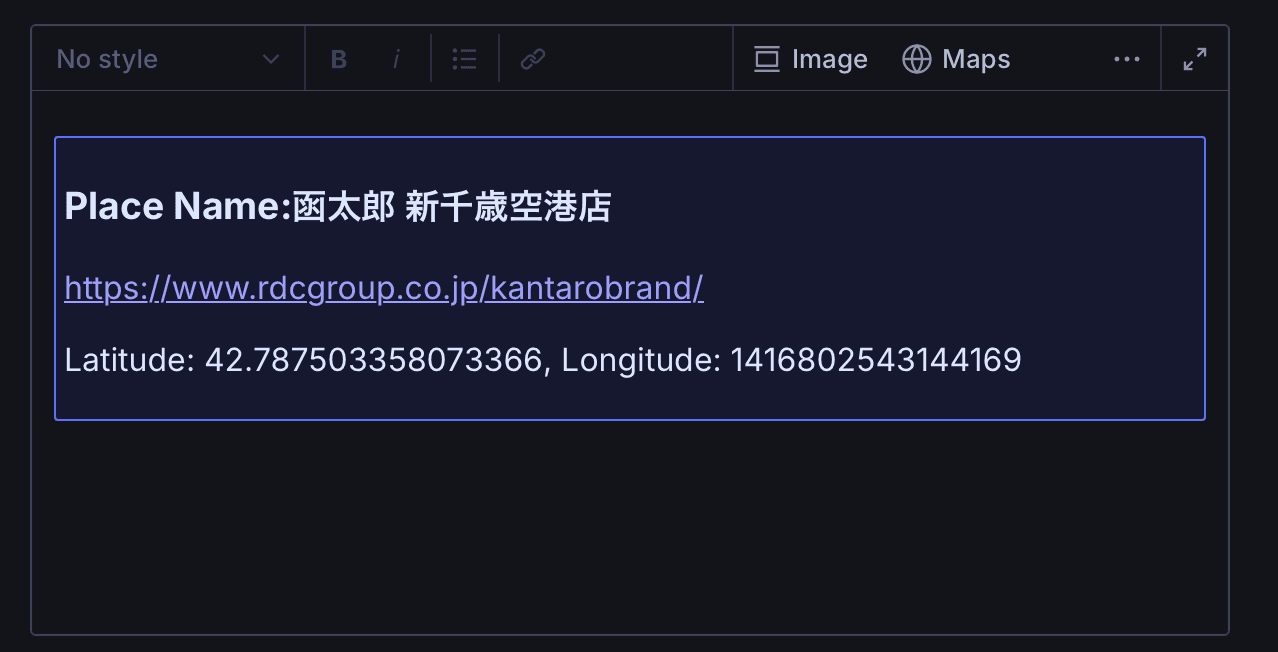
Data verification
Let's see how the above data appears when searched in GROQ. Execute the following GROQ in Vision.
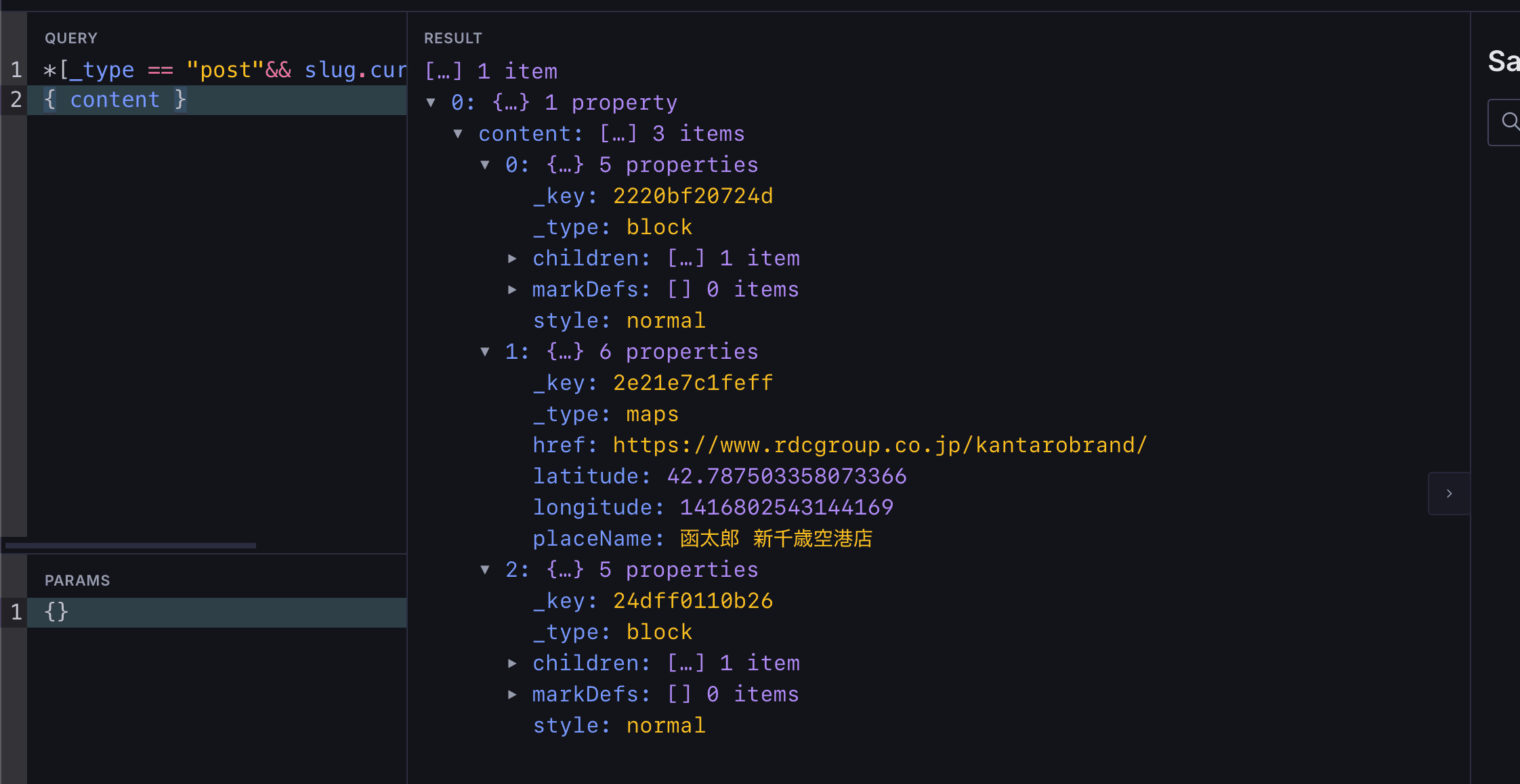
When checking the JSON results, the following data is returned.
json
By processing the data as _type maps in the frontend, you can display it as map data.
Summary
This time, we introduced the procedure for adding structured data to the Portable Text area. For actual patterns of deploying map data and websites, please refer to the sample that incorporates map data using Next.js.